
How to Build Your First AI Agent with Claude in 15 Minutes (No Code Needed)
- ai-agent
- claude
- productivity
- artificial-intelligence
- content-creation
Oct 21, 2026 · Ronak Bhatt
One real example, step by step: an agent that turns any article you write into ready-to-post social content.
Every week I did the same thing. I’d finish an article, open Claude, explain who I am, paste in examples of my writing style, and ask for a LinkedIn post. Then I’d do it all again for X. Then again for my newsletter.
That’s not using AI. That’s babysitting it.
An agent fixes this. An agent is Claude set up once with a clear job, standing instructions and reference files, so it knows exactly what to do the moment you hand it work. No re-explaining, no copy-pasting your style guide every time.
In this guide, I’ll show you how to build one in about 15 minutes, using only the Claude app. No code, no API keys, no setup headaches.
What we’re building
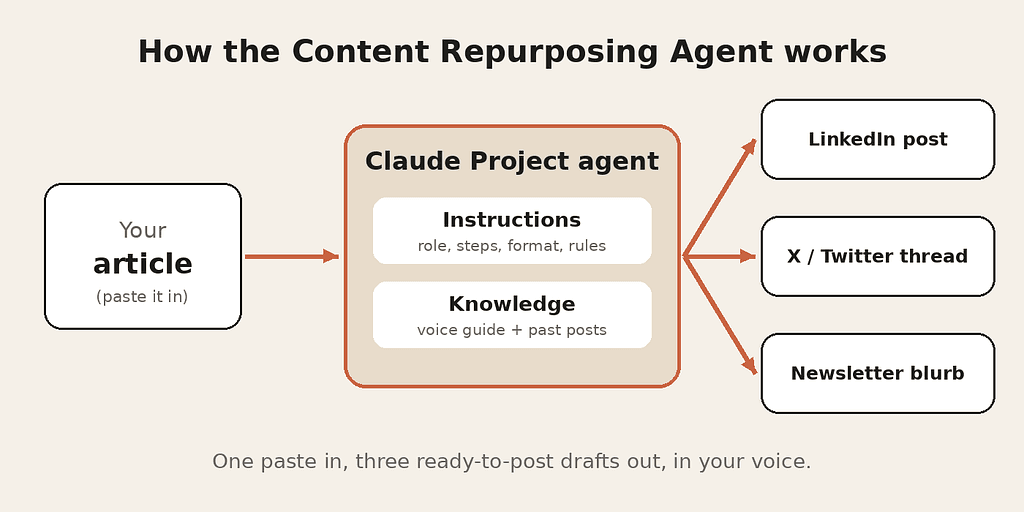
We’ll build a Content Repurposing Agent. You paste in an article you’ve written, and it hands back three drafts, all in your voice:
- A LinkedIn post
- An X (Twitter) thread
- A short newsletter blurb
The agent has two parts. The instructions tell it who it is, what to do and how to format the result. The knowledge is a set of files it always has on hand, like your voice guide and a few posts that performed well. Together, they turn a general chatbot into a specialist that does one job well.
What you need
- A Claude account at claude.ai (the desktop app works too). Free accounts can create up to five projects; some project features need a paid plan.
- A voice guide (optional but powerful): a short document describing how you write. If you don’t have one, I’ll show you how to make it in Step 3.
- Two or three of your best past posts, saved as text or PDF files.
- One finished article to test the agent with.
Step-by-step: build the agent
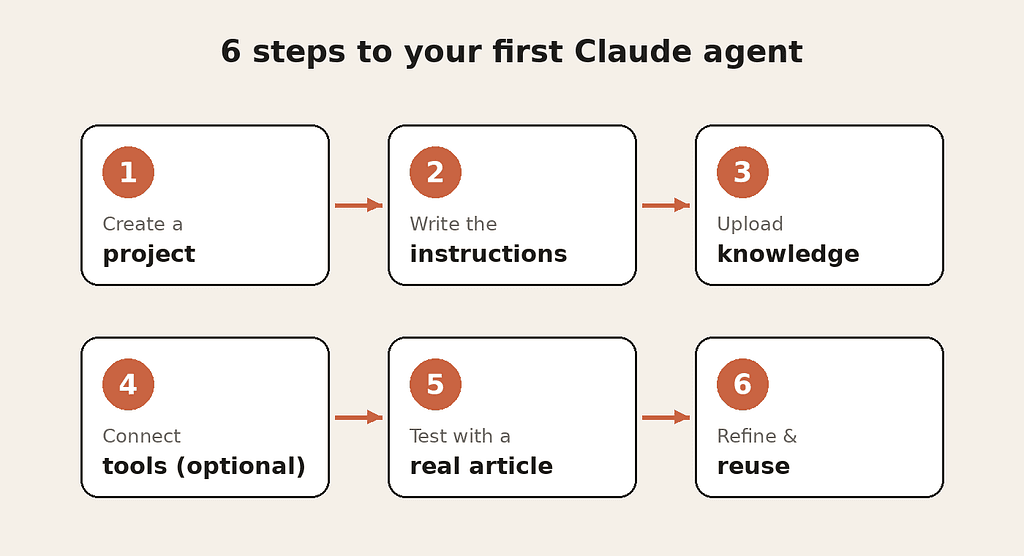
Here’s the whole process at a glance. We’ll go through each step in detail below.
Step 1: Create a project
A Claude Project is a dedicated workspace. Everything you set up inside it (instructions and files) applies to every chat you start there. That’s what makes it an agent instead of a one-off conversation.
- Go to claude.ai and sign in.
- Click Projects in the left sidebar.
- Click Create project.
- Name it Content Repurposing Agent.
- Add a short description, such as “Turns my articles into LinkedIn, X and newsletter posts.” This is just for you; Claude doesn’t read the name or description.
- Click Create project. You’ll land on the project page, with a chat box in the middle and a panel for instructions and files on the side.
Step 2: Write the instructions
This is the heart of your agent. The instructions work like a job description: Claude reads them at the start of every chat in the project.
- On the project page, click Set project instructions.
- Paste in the instructions below, then change the details in square brackets to fit you.
- Click Save instructions.
You are my Content Repurposing Agent.

WHO I AM
I write about [your topic, e.g. personal finance for freelancers] for [your audience].
YOUR JOB
When I paste an article, turn it into three pieces of content:
1. A LinkedIn post (150-250 words)
2. An X thread (5-7 posts, each under 280 characters)
3. A newsletter blurb (60-80 words) that makes people want to read the full article
HOW TO DO IT
- First, find the single most useful idea in the article.
- Open every piece with a strong hook in the first line.
- Use short sentences and plain words.
- End the LinkedIn post with a question that invites comments.
- Number the X thread posts (1/, 2/, 3/...).
MY VOICE
Follow "voice-guide.txt" in the project files. Match the tone of the example posts in "best-posts.txt".
RULES
- Never invent facts, numbers or quotes that aren't in my article.
- No hashtags unless I ask for them.
- If the article is unclear, ask me one question before writing.
FORMAT
Use three headings: LinkedIn, X Thread, Newsletter. Nothing else before or after.
Why this works: it gives the agent a role, a clear job, the steps to follow, rules to protect quality and an exact format. Those five parts are the recipe for almost any agent.
Step 3: Upload your knowledge files
Knowledge is the agent’s reference library. Upload a file once, and Claude can use it in every chat in the project.
- Create a text file called voice-guide.txt. Write five to ten lines about how you write. For example:
- I write like I talk: friendly, direct, a little funny.
- I use "you" a lot and speak to one reader.
- I avoid jargon and buzzwords like "leverage" and "synergy".
- I share personal lessons, not lectures.
- My sentences are short. My paragraphs are 1-3 lines.
No voice guide yet? Start a normal chat, paste in three of your posts and ask: “Describe my writing style as a 10-point voice guide.” Save the answer as your file.
- Create a second file called best-posts.txt and paste in two or three of your best-performing posts.
- On the project page, find the project knowledge panel and click the add button to upload both files.
- Check that both files appear in the panel.
Tip: file names matter. Your instructions mention “voice-guide.txt” by name, so Claude knows exactly which file to use for what.
Step 4: Connect tools (optional)
Your agent already works without this step. But if your articles live in Google Drive or Notion, you can connect those apps so the agent reads them directly.
- Open Settings and go to the connectors section.
- Connect the app you use, such as Google Drive or Notion, and sign in.
- Now, instead of pasting your article, you can say: “Repurpose my article ‘How I paid off my debt’ from Google Drive.”
Step 5: Test it with a real article
- Inside the project, start a new chat.
- Type: “Here’s my new article. Repurpose it.”, then paste the full article below it.
- Press Enter and wait a few seconds.
You should get three clearly labeled drafts: LinkedIn, X Thread and Newsletter. Read them with a critical eye. Do they sound like you? Did the agent follow the word counts? Did it invent anything?
Step 6: Refine and reuse
Your first results will be good, not perfect. Here’s how to make them great:
- Spot the pattern. If every LinkedIn post starts the same way, or the tone is too formal, that’s a signal to fix the instructions, not just the single answer.
- Update the instructions. Add a clear rule, such as “Never start a post with a question” or “Use one emoji at most.”
- Add better examples. When a post the agent wrote performs well, add it to best-posts.txt. The agent learns your style from what works.
- Test again with a different article.
After two or three rounds, you’ll have an agent you can use every week. Each time you publish, just open the project, paste the article and get your social content in seconds.
Tips to make your agent even better
- Keep it to one job. Resist adding “also write my emails” to this agent. Build a second project for that. Focused agents give better results.
- Be specific, not polite. “Keep it under 200 words” works better than “please try to keep it short.”
- Tell it what to do when unsure. The rule “ask me one question before writing” stops the agent from guessing.
- Point to your files by name. If Claude ignores your knowledge, mention the exact file name in the instructions.
- Review before you post. Your agent writes the first draft. You’re still the editor.
Final thoughts
Building an AI agent sounds technical, but at its core it’s just three things: a clear job, good instructions and the right reference files. Once you’ve built this one, you can use the same recipe for anything you do over and over, from replying to customer emails to writing weekly reports.
Start small. Pick one task that eats your time every week, build an agent for it today, and improve it a little each time you use it.
If you build one, tell me what it does in the comments. I’d love to see what you create.