
How I Built an AI Helper That Looks After My Website (Using Automaton and Vercel)
- money
- autmation
- nodejs
- ai
- ai-projects
A beginner-friendly guide. No deep AI knowledge needed.
The problem
Running a website is a lot of small jobs. You have to check if the site is working, fix broken links, update old text, and publish changes. None of it is hard, but it takes time every week.
So I asked myself: can an AI do these small jobs for me?
It turns out it can. In this post, I’ll show you how I did it using two free tools:
- Automaton, an open source AI agent that can work on its own
- Vercel, a service that puts your website online in a few clicks
What is Automaton, in simple words?
Think of Automaton as a robot helper you hire for your website.
You give it one instruction, like “look after my website.” Then it works on its own, day and night. It checks things, writes reports, and suggests fixes.
What makes it different from other AI tools is that it has its own digital wallet. It uses money from that wallet to pay for its own computer time. You top up the wallet, and it keeps working. If the wallet runs empty, it stops. This keeps costs under control.
It also has a set of built-in rules it cannot break. The main ones are: never harm people, never cheat, and always be honest with its owner.
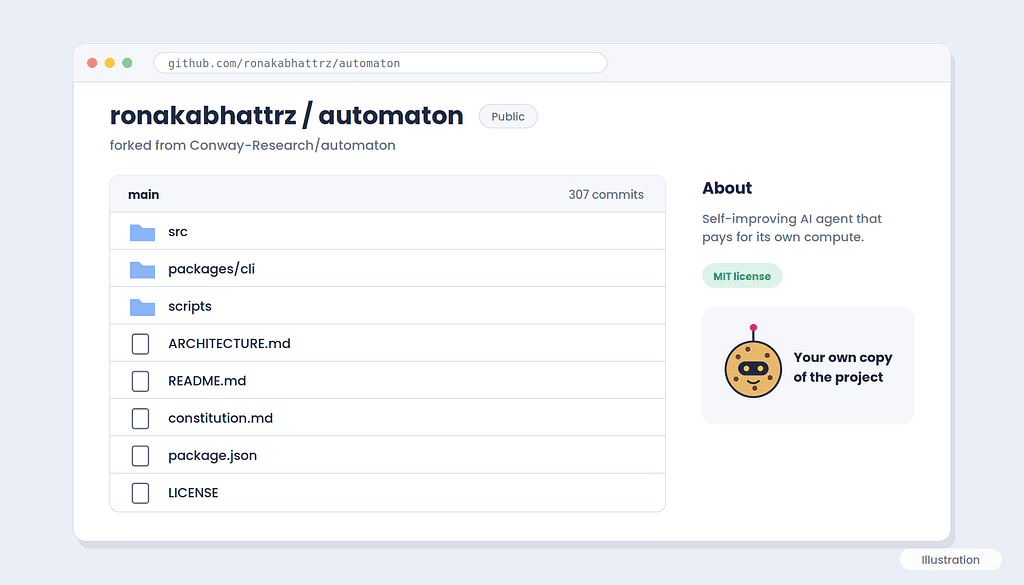
For this guide, I’m using my own copy of the project:
github.com/ronakabhattrz/automaton
This is a “fork” of the original Automaton project by Conway Research. A fork is your own copy of a project, so you can try things out and make changes without touching the original.
Our example: a small bakery website
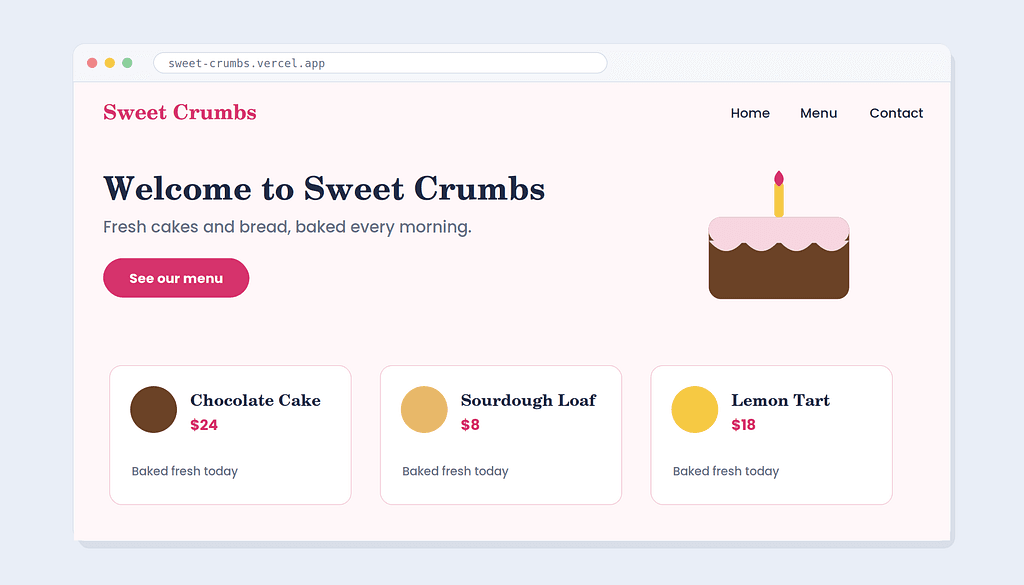
To keep things simple, let’s use an example. Imagine you run a small bakery called Sweet Crumbs, and you have a simple website with three pages:
- Home, with a welcome message
- Menu, with your cakes and prices
- Contact, with your address and phone number
Your goal is simple. You want the AI to:
- Check every day that all three pages are working
- Find any broken links
- Suggest improvements, like fixing typos or old prices
- Send the changes to you for approval before anything goes live
How the whole thing fits together
Here’s the big picture before we start:
- Your website’s files live on GitHub (a place to store code online).
- Vercel reads those files and puts your website online.
- Automaton watches your website and suggests changes on GitHub.
- You approve the changes, and Vercel updates the website automatically.
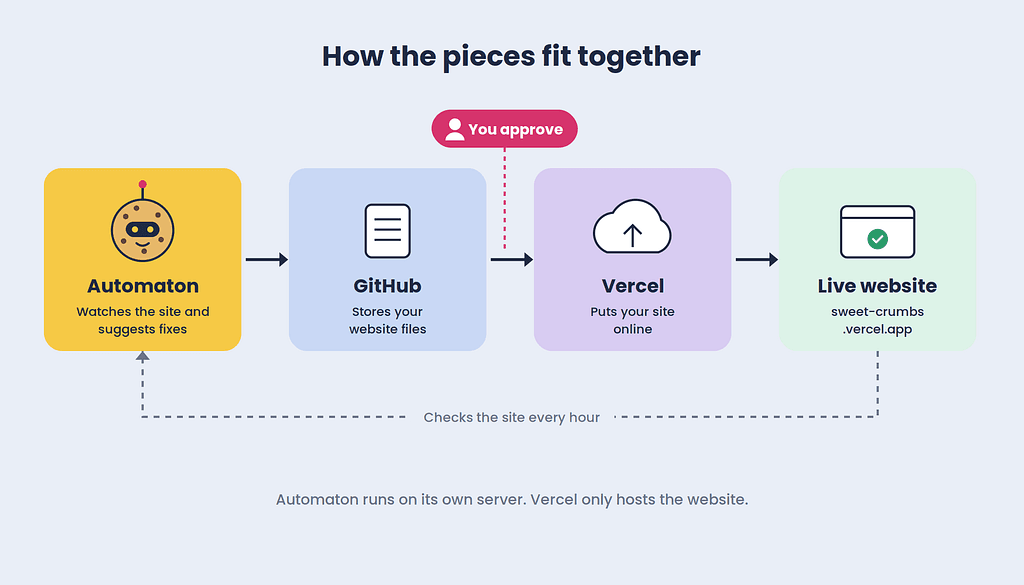
One quick note: Automaton itself does not run on Vercel. Vercel is built for websites, which respond when someone visits and then go quiet. Automaton needs to run all the time, like a worker on a shift. So Vercel hosts your website, and Automaton runs on its own server and manages the website from there.
Step 1: Put your website on GitHub
If your website isn’t on GitHub yet, here’s the simplest way:
- Create a free account at github.com.
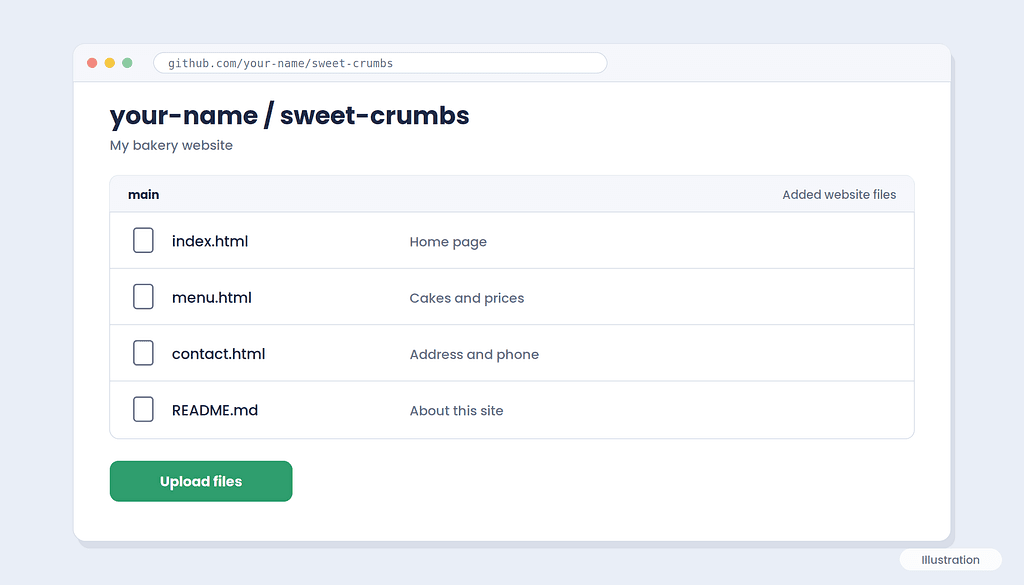
- Click New repository and name it sweet-crumbs.
- Upload your website files (for example index.html, menu.html, contact.html).
Here’s a tiny example of what index.html might look like:
<!DOCTYPE html>
<html>
<head>
  <title>Sweet Crumbs Bakery</title>
  <meta name="description" content="Fresh cakes and bread, baked daily.">
</head>
<body>
  <h1>Welcome to Sweet Crumbs</h1>
  <p>Fresh cakes and bread, baked every morning.</p>
  <a href="menu.html">See our menu</a>
  <a href="contact.html">Contact us</a>
</body>
</html>
Step 2: Put your website online with Vercel
This is the easy part.
- Go to vercel.com and sign up using your GitHub account.
- Click Add New → Project.
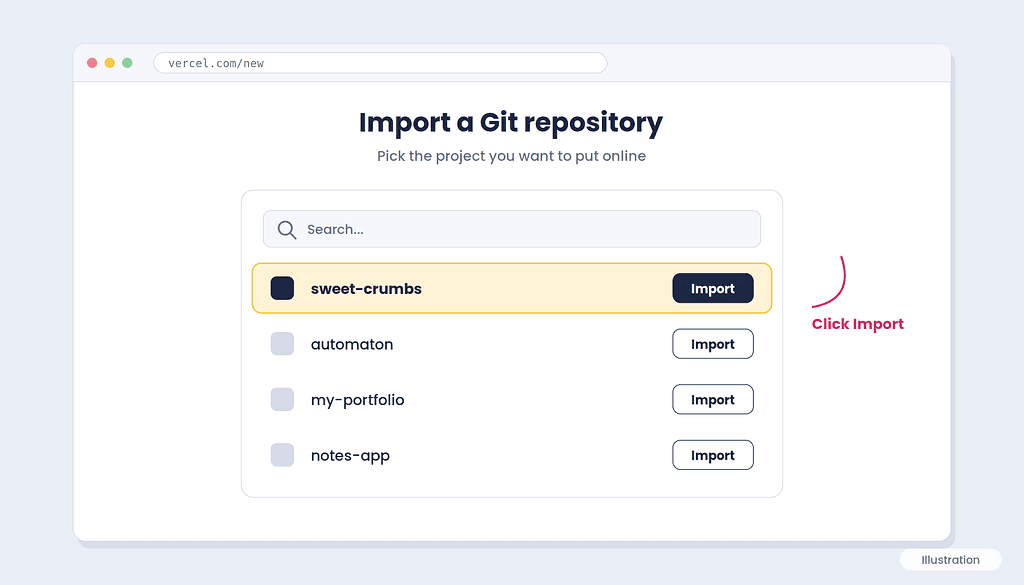
- Find your sweet-crumbs repository and click Import.
- Click Deploy.
That’s it. In about a minute, Vercel gives you a live link, something like sweet-crumbs.vercel.app.
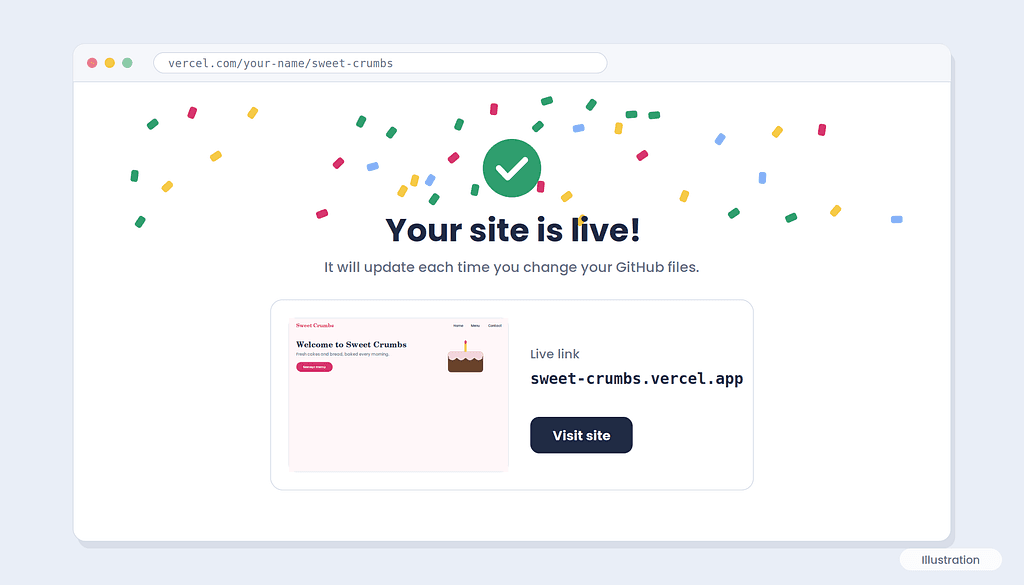
Here’s the best part. From now on, every time something changes in your GitHub repository, Vercel updates your website automatically. You never have to deploy by hand again.
Even better, when someone suggests a change on GitHub (called a pull request), Vercel creates a preview link. This is a private copy of your website with the change applied, so you can see it before it goes live. This is how we’ll safely check the AI’s work.
If you prefer the command line, you can also deploy with the Vercel CLI:
npm install -g vercel
vercel          # creates a preview version
vercel --prod   # publishes to your live site
Step 3: Install Automaton
You’ll need Node.js installed on your computer or server. Then run:
git clone https://github.com/ronakabhattrz/automaton.git
cd automaton
npm install && npm run build
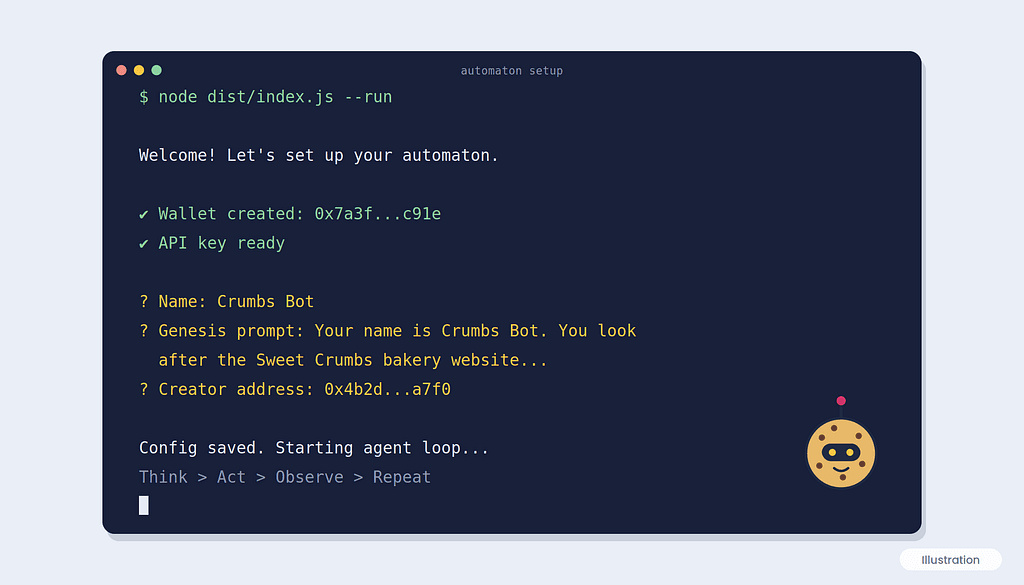
node dist/index.js --run
The first time you run it, a setup wizard starts. It will:
- Create a wallet for your AI helper
- Set up its access key
- Ask you for a name (I called mine “Crumbs Bot”)
- Ask you for a genesis prompt, which is its main job instruction
- Ask for your creator address, which is your own wallet, so you stay the owner
Tip: If you make your own fork like I did, open it on GitHub now and then and click Sync fork. This pulls in the latest fixes from the original project.
Step 4: Give your AI helper its job
The genesis prompt is the most important part. Write it like you’re explaining the job to a new employee. Keep it clear and simple.
Here’s the one I used for Sweet Crumbs:
Your name is Crumbs Bot. You look after the Sweet Crumbs bakery
website at https://sweet-crumbs.vercel.app
Your daily jobs:
1. Every hour, check that the Home, Menu, and Contact pages load.
   If a page is down, write it in reports/uptime.md
2. Once a day, look for broken links and list them in
   reports/links.md
3. Once a week, read all pages and suggest fixes for typos,
   unclear text, or missing page descriptions.
How to make changes:
- Never change the main website directly.
- Put your changes on a new branch in the sweet-crumbs GitHub
  repository and open a pull request.
- Explain each change in simple words in the pull request.
Rules:
- Do not create other agents.
- Do not spend money except on your own running costs.
- Use the cheapest option that gets the job done.
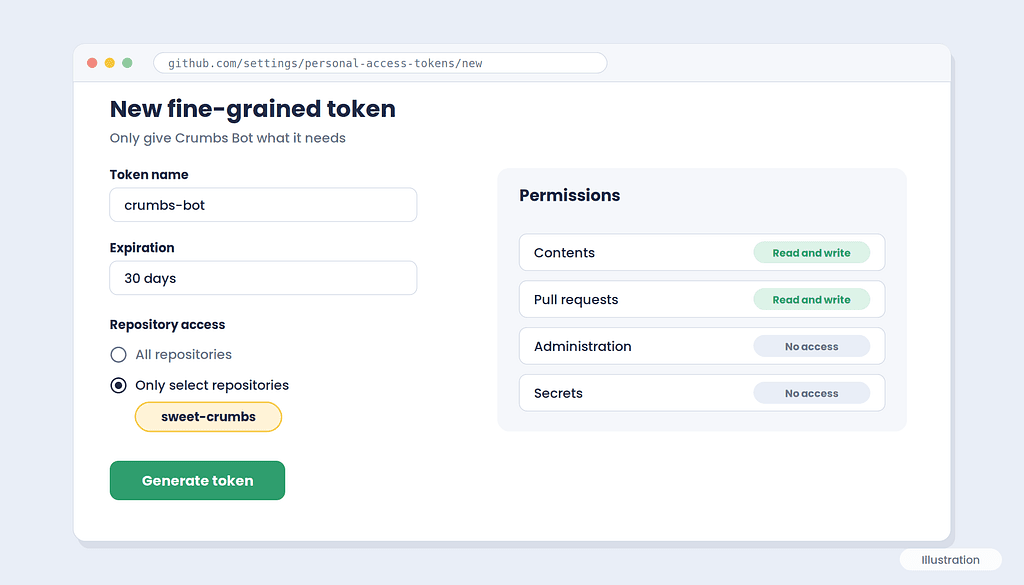
To let it open pull requests, give it a GitHub access token that only works on the sweet-crumbs repository. In GitHub, go to Settings → Developer settings → Fine-grained tokens, and pick only that one repository. Never give it access to your whole account.
Step 5: Watch it work
Here’s what a normal day looks like:
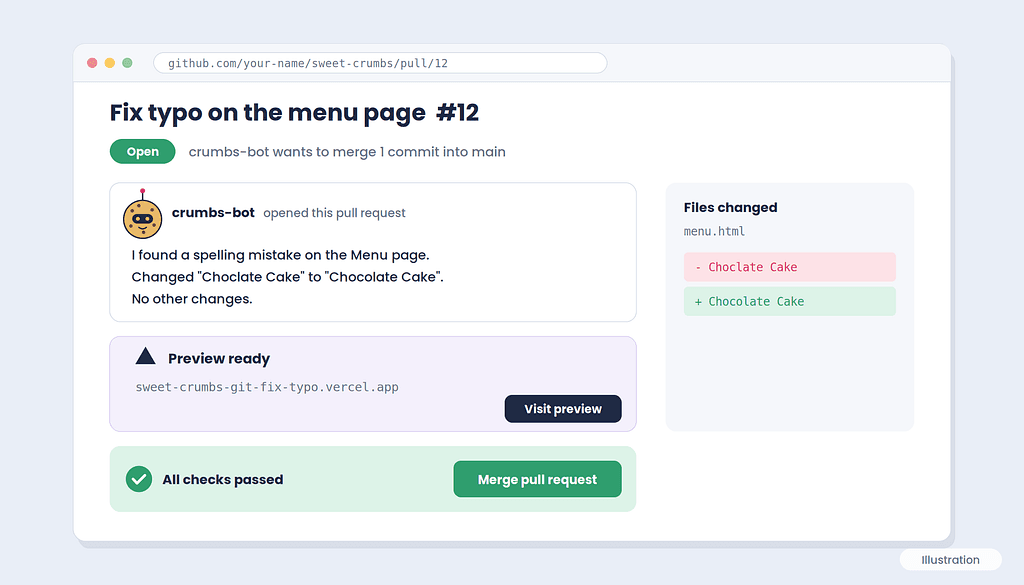
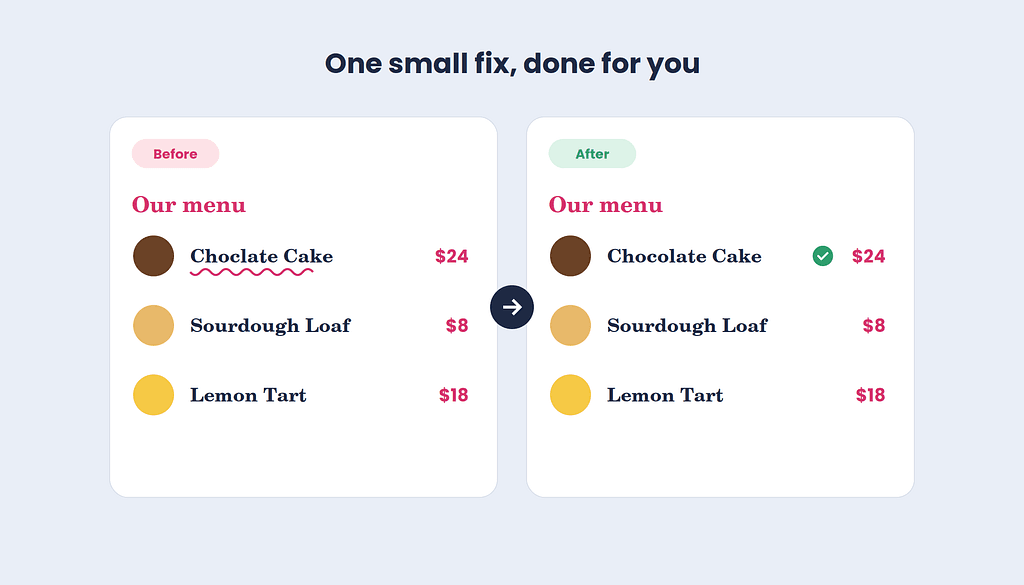
- Crumbs Bot notices the Menu page says “Choclate Cake” instead of “Chocolate Cake.”
- It fixes the typo on a new branch and opens a pull request.
- Vercel automatically builds a preview link with the fix.
- You open the preview link on your phone and check it.
- It looks good, so you click Merge on GitHub.
- Vercel updates your live website within a minute.
You stayed in control the whole time, and you spent about 30 seconds on it.
Step 6: Keep an eye on your helper
Automaton comes with a few simple commands for you, the owner:
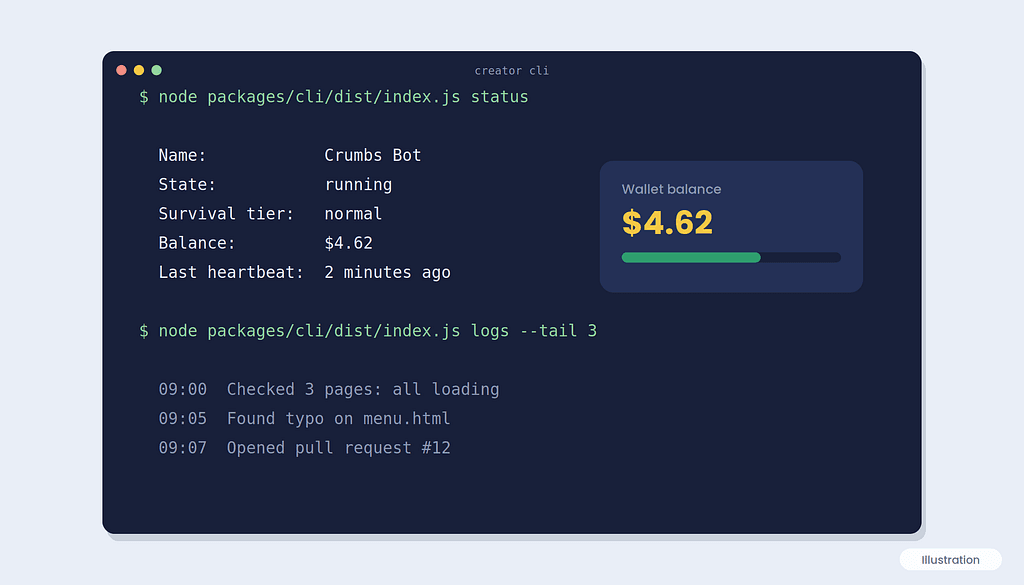
node packages/cli/dist/index.js status          # is it running, and how much money is left?
node packages/cli/dist/index.js logs --tail 20  # what did it do recently?
node packages/cli/dist/index.js fund 5.00       # add $5 to its wallet
When the wallet gets low, the helper automatically slows down and switches to cheaper AI models to save money. When it’s empty, it simply stops. So you never get a surprise bill.
A few simple safety tips
- Start small. Add only a few dollars to the wallet at first.
- Always approve changes yourself. The pull request and preview link setup makes this easy.
- Limit access. Give it a GitHub token for one repository only.
- Check the logs every few days, especially in the first weeks.
- Remember it’s experimental. Automaton is new and changes often, so test it on a practice website first.
- Know that it uses crypto. The wallet uses stablecoins (digital money tied to the US dollar), so you’ll need a crypto wallet to fund it.
Wrapping up
With Automaton and Vercel, you can have a little AI helper that watches your website every day, finds problems, and suggests fixes, while you stay in charge of what goes live.
The setup is simple: GitHub stores your site, Vercel puts it online, Automaton looks after it, and you approve the changes.
You can find the code I used here: github.com/ronakabhattrz/automaton. Give it a try on a small project first. You might be surprised how much time it saves.
Have you tried letting an AI look after your website? Tell me how it went in the comments.